
Results pane
The results pane is part of the Author impact analysis, Journal impact analysis, General citation search, and Multi-query center pages. Although each page has its own copy of the results pane, they operate identically.
See Accuracy of the results for important notes and limitations on the resulting output. Please also note that Google Scholar limits its results to 1000. The results are ranked by number of citations, so the 1000 shown are the most-cited results.
Results pane from Publish or Perish 4.22 onward

Results pane from Publish or Perish 4.10 onward

Results pane from Publish or Perish 3.7 onward
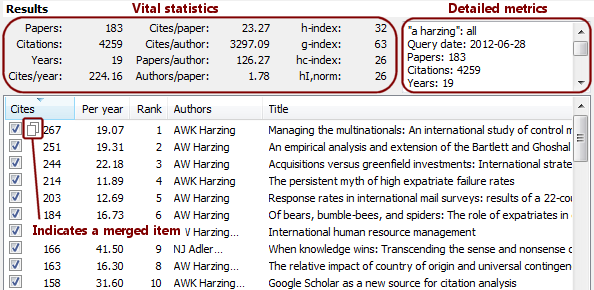
Results pane in Publish or Perish 3.6 and earlier
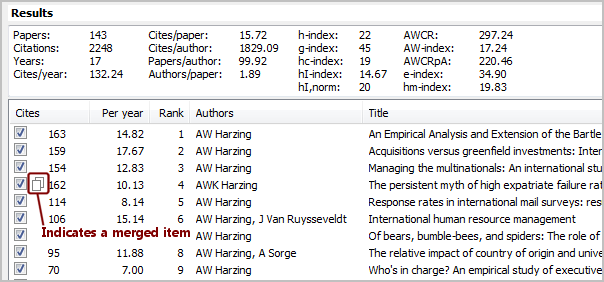
Merging of results
If you think that one or more separate result items really refer to a single article or book, you can merge them in the results list. You do this by dragging one item and dropping it onto another; the resulting item has a small "double document" icon (see screen shot above). This process can be repeated as often as you like.
In all cases, the following apply:
- The merged information uses the title, authors, etc. information from the target item (the one onto which the other items are dropped).
- The merged item's total citations are the sum of all constituent items. The citation metrics are updated accordingly.
- The merge persists until you perform the Lookup [Direct] command on the parent query.
- You can un-merge the item by right-clicking on the item and choosing Split Citations from the popup menu.
Attributes
This pane contains the following fields and options.
(unnamed upper field)
The upper text field displays the citation metrics for the currently selected query. You can copy the information from this field by right-clicking in the field, then choosing Select All, and right-clicking again to choose Copy. Alternatively, left-click in the field to give it the keyboard focus, then use Ctrl+A and Ctrl+C to select and copy.
(unnamed lower list)
The lower list displays all results for the currently selected query. By default, the list is sorted by descending number of citations, but you can sort it on any of the columns by clicking on the corresponding column header. Clicking for a second time on the same column header reverses the sort order.
You can exclude individual results by clearing their check box; alternatively, use the Check all, Check selection, Uncheck all, Uncheck 0 cites, and Uncheck selection buttons to check or uncheck groups of results. When you select or unselect results, the citation metrics in the upper field are immediately updated to reflect the remaining results.
If you double-click on an item in the list, Publish or Perish opens your web browser and displays the citing works for the selected item, if any. If an item does not have any citations, a general Google search results page is displayed for the item.
The list contains the following columns (see Accuracy of the results for ways of spotting potential problems in this list):
| Tag | Used for | Notes |
|---|---|---|
| Cites | Number of citations | |
| Per year | Citations per year | Calculated as the total number of citations divided by the age of the article (i.e., the number of years since publication). If the year of publication is not available, this column shows 0.00. |
| GS Rank | Google Scholar ranking |
This is the order in which Google Scholar returned the results (1=first, 2=second, etc.). Typically, earlier ranked entries indicate more relevant query results. An irregular rank order when the list is sorted by Cites might indicate that the list contains irrelevant results. The rank is only available from Publish or Perish version 2.2 onwards. Results obtained with earlier versions show "n/a" in this column. In that case, simply re-execute the query by clicking on Lookup. |
| Authors | Author names | |
| Title | Title | |
| Year | Year of publication | This field might be wrong or missing if the Google Scholar results do not contain a recognizable year. |
| Publication | Journal name or similar | Not always available; sometimes wrong if the Google Scholar results are mixed up. |
| Publisher | Publisher | Not always available; sometimes wrong if the Google Scholar results are mixed up. |
Copy results
Click this button to copy all currently selected results plus the corresponding metrics to the Windows clipboard. You can then paste them into another application. The keyboard shortcut for this command is Ctrl+Shift+C.
Copy >
Click this button to open a popup menu with various copy commands.
Note: These commands apply to the currently displayed set of results only. If you want to copy data from several queries at once, use the popup menu commands from the multi-query center's list view. As an alternative, you can also export the data in a variety of formats.
| Command | Description |
|---|---|
| Copy Statistics as Text | Copies the citation metrics (from the upper text field) to the Windows clipboard in plain text format. You can then paste this text into other applications. |
| Copy Statistics as CSV | Copies the citation metrics (from the upper text field) to the Windows clipboard in CSV (comma-separated value) format. You can then paste this into other applications for further processing. |
| Copy Statistics as CSV with Header | Does the same as the previous command, but precedes the statistics with an extra line that contains the names of the fields, also in comma-separated format. |
| Copy Statistics for Excel | Copies the citation metrics (from the upper text field) to the Windows clipboard in tab-separated format. You can then paste this into other applications for further processing, and in particular into spreadsheet applications such as Microsoft Excel, OpenOffice Calc, and SoftMaker's PlanMaker. |
| Copy Statistics for Excel with Header | Does the same as the previous command, but precedes the statistics with an extra line that contains the names of the fields, also in tab-separated format. |
| Copy Results as Text | Copies the results (from the lower list) to the Windows clipboard in plain text format. You can then paste this text into other applications. |
| Copy Results as CSV | Copies the results (from the lower list) to the Windows clipboard in CSV (comma-separated value) format. You can then paste this into other applications for further processing. |
| Copy Results as CSV with Header | Does the same as the previous command, but precedes the statistics with an extra line that contains the names of the fields, also in comma-separated format. |
| Copy Results for Excel | Copies the results (from the lower list) to the Windows clipboard in tab-separated format. You can then paste this into other applications for further processing, and in particular into spreadsheet applications such as Microsoft Excel, OpenOffice Calc, and SoftMaker's PlanMaker. |
| Copy Results for Excel with Header | Does the same as the previous command, but precedes the statistics with an extra line that contains the names of the fields, also in tab-separated format. |
Check all
Click this button to check all items in the results list. Alternatively, press Ctrl+A.
Check selection
Click this button to check all selected (i.e., highlighted) items in the results list.
Uncheck all
Click this button to uncheck all items in the results list. Alternatively, press Ctrl+U.
Uncheck 0 cites
Click this button to uncheck all results that have 0 citations. Alternatively, press Ctrl+0 (that's zero, not Oh).
Uncheck CITATION
Click this button to uncheck all results that have Type CITATION. These are results to which Google Scholar found references, but for which the original work was not found online. This happens for many books and book chapters, or for non-print works such as software programs. It may also indicate that the reference that Google Scholar found misquoted the original publication's details or appeared in a format that Google Scholar could not parse correctly.
Uncheck selection
Click this button to uncheck all selected (i.e., highlighted) items in the results list.
Popup menu
If you right-click anywhere in the results list (lower list), a popup menu appears with additional commands that apply to the currently selected results or to the query as a whole.
Note: These commands apply to the currently displayed set of results only. If you want to copy data from several queries at once, use the popup menu commands from the multi-query center's list view. As an alternative, you can also export the data in a variety of formats.
| Command | Description |
|---|---|
| Open Article in Browser | Opens the currently selected article in your web browser. This command is only available for some items (depending on the information that Google Scholar provided) and may actually open the abstract rather than the full article. |
| Open Citations/Related in Browser | Opens the Google Scholar web page that lists the referencing articles for the current item, if available. In absence of that, opens the Google Scholar "related" web page, if available. |
| Split Citations | If the currently selected results line consists of merged items, undoes the merge. The original items are shown again in the list. This command is only available for merged items. |
| Copy Statistics as Text | Copies the citation metrics (from the upper text field) to the Windows clipboard in plain text format. You can then paste this text into other applications. |
| Copy Statistics as CSV | Copies the citation metrics (from the upper text field) to the Windows clipboard in CSV (comma-separated value) format. You can then paste this into other applications for further processing. |
| Copy Statistics as CSV with Header | Does the same as the previous command, but precedes the statistics with an extra line that contains the names of the fields, also in comma-separated format. |
| Copy Statistics for Excel | Copies the citation metrics (from the upper text field) to the Windows clipboard in tab-separated format. You can then paste this into other applications for further processing, and in particular into spreadsheet applications such as Microsoft Excel, OpenOffice Calc, and SoftMaker's PlanMaker. |
| Copy Statistics for Excel with Header | Does the same as the previous command, but precedes the statistics with an extra line that contains the names of the fields, also in tab-separated format. |
| Copy Results as Text | Copies the results (from the lower list) to the Windows clipboard in plain text format. You can then paste this text into other applications. |
| Copy Results as CSV | Copies the results (from the lower list) to the Windows clipboard in CSV (comma-separated value) format. You can then paste this into other applications for further processing. |
| Copy Results as CSV with Header | Does the same as the previous command, but precedes the statistics with an extra line that contains the names of the fields, also in comma-separated format. |
| Copy Results for Excel | Copies the results (from the lower list) to the Windows clipboard in tab-separated format. You can then paste this into other applications for further processing, and in particular into spreadsheet applications such as Microsoft Excel, OpenOffice Calc, and SoftMaker's PlanMaker. |
| Copy Results for Excel with Header | Does the same as the previous command, but precedes the statistics with an extra line that contains the names of the fields, also in tab-separated format. |
| Check/Select All | Checks all items in the results list. Alternatively, press Ctrl+A. |
| Check Selection | Checks all selected (i.e., highlighted) items in the results list. |
| Uncheck All | Unchecks all items in the results list. Alternatively, press Ctrl+U. |
| Uncheck 0 Cites | Unchecks all results that have 0 citations. Alternatively, press Ctrl+0 (that's zero, not Oh). |
| Uncheck Selection | Unchecks all selected (i.e., highlighted) items in the results list. |
| Save As BiBTeX... | Saves the currently checked citations in BibTeX format, encoded as Unicode UTF-8. |
| Save As CSV... | Saves the currently checked citations in comma-separated format, encoded as Unicode UTF-8. |
| Save As EndNote... | Saves the currently checked citations in EndNote Import format, encoded as Unicode UTF-8. |
| Save As RefMan/RIS... | Saves the currently checked citations in Reference Manager (RIS) format, encoded as Unicode UTF-8. |